


Shahin's analytics and stats — right inside your WordPress dashboard
The Shahin plugin streamlines connecting WordPress sites to Shahin. Once you install it, domain-ownership verification and loading of the Shahin script run automatically across every page. From then on, you can monitor analytics reports and user-behavior data without leaving the WordPress admin panel.
Get Started
Connect your WordPress site to Shahin Analytics in just a few steps.
What's inside the Shahin plugin
More Shahin services & Features
Shahin is more than basic stats — these services unlock with the right plan.
Analytics
Deeper user-behaviour reports, beyond basic stats.
Performance
Your site's real speed and user-experience quality.
SEO
Your organic search performance from Google Search Console.
Explore these services in Shahin
To use Analytics, Performance and SEO, open your Shahin dashboard and explore these services.
Connected in three steps
From installing the plugin to your first report — in a few minutes.
Step 1
Install the plugin
In the WordPress admin → Plugins, search “Shahin” and install & activate the Shahin Analytics plugin.
Step 2
Enter the connection token
Create a project in Shahin and enable the WordPress option; copy the token, paste it into the plugin's Get Started page and hit “Verify & Connect.”
Step 3
Reports begin instantly
The Shahin script is placed on all pages and data flows in the admin panel from that moment.
What you see inside the Shahin plugin
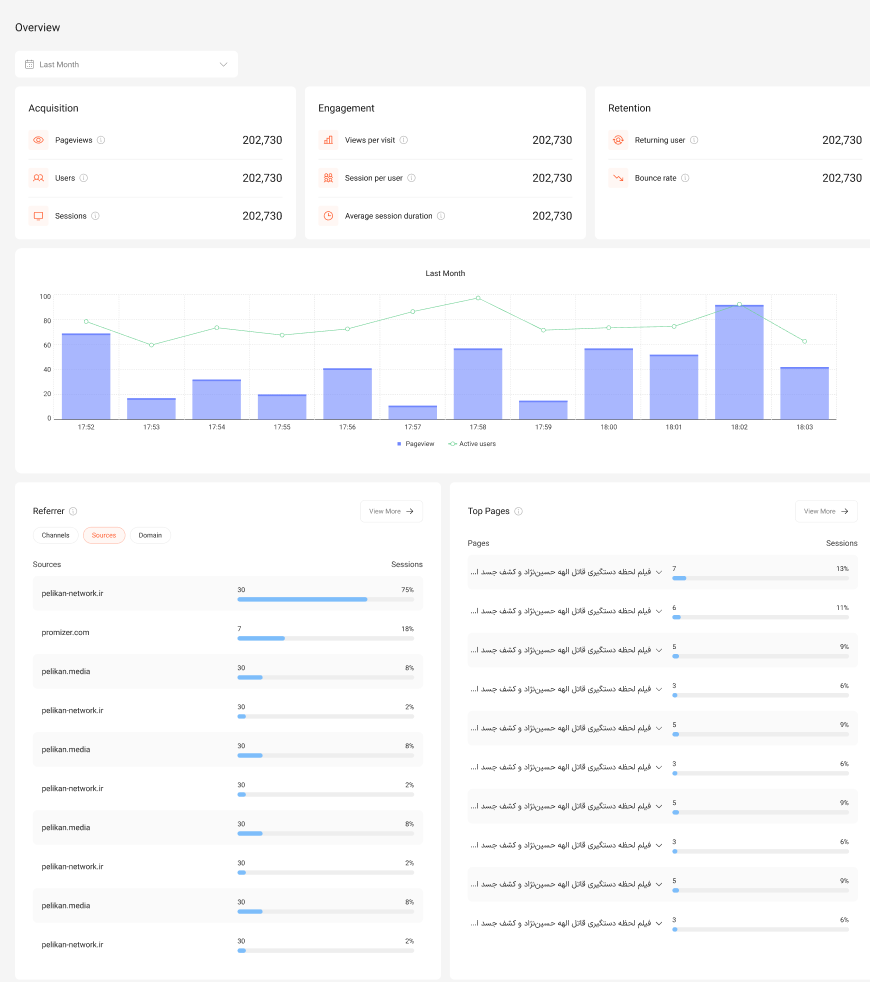
Overview
A summary of your site's performance across acquisition, engagement and retention — with the trend chart, traffic sources and top pages. One glance, your whole traffic health.
Why the Shahin WordPress plugin
Automatic script placement
When you activate the plugin, the Shahin script is placed automatically on every page of your site — no FTP, no theme editing.
Automatic domain verification
Instead of downloading and uploading a verification file, the plugin verifies domain ownership automatically.
Reports in the WordPress admin panel
Overview and Realtime, right there — without leaving the WordPress admin panel.
Lightweight & optimized
The Shahin script is small and optimized, and won't harm your load speed or Core Web Vitals.